
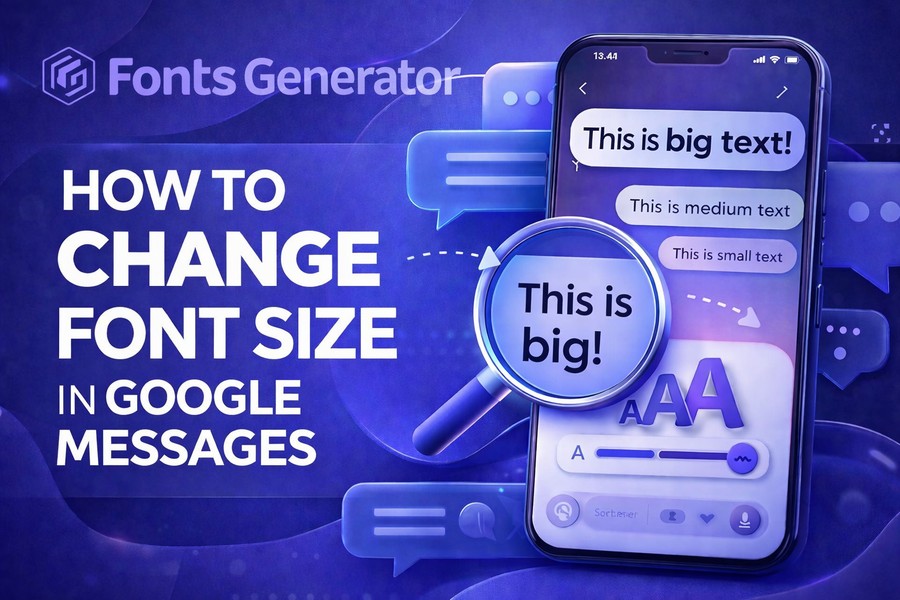
If you have ever opened Google Messages and felt the text looked too small or far too large, you are not alone. Reading texts should feel effortless, especially when you are replying quickly, checking a long thread, or helping a family member make their phone easier to use.
This guide shows you how to change font size in Google Messages with clear steps, practical fixes, and simple explanations that help you choose the method that works best on your Android phone.
Understand the Two Ways Google Messages Changes Text Size
When you want to make text easier to read in Google Messages, you usually have two options. You can change the conversation text inside the app itself, or you can change the font size across your Android device through system settings. The first option is more targeted because it focuses on message threads, while the second option affects more of what you see on your phone, including menus, notifications, and other apps.
That difference matters because each method solves a different problem. If you only want bigger text while texting, a focused app-level change is often the cleanest fix, just like using a best fonts generator helps you shape text for a specific purpose instead of changing every style on a page. If you want larger text across your whole device for comfort, eye strain, or accessibility, the Android font size setting gives you a broader range of options.
Use the Pinch Gesture Inside a Conversation Thread
One of the easiest ways to change the text size in Google Messages is to open a conversation and pinch the screen with two fingers. When you spread two fingers apart, the conversation text becomes larger, and when you pinch inward, it moves closer to the default size. This method is fast, natural, and useful when you need better readability without opening your phone settings.
The benefit of this approach is that it feels immediate. You can test the size in real time and see whether the message bubbles, timestamps, and typing field feel comfortable, which is similar to how platform-specific text choices matter in design conversations, such as what font does tiktok use. If the gesture does not work on your phone, the feature may not be enabled, your app may need an update, or your keyboard may be open and blocking the resizing action.
Change Font Size Through Android Accessibility Settings
If you want a larger or smaller text size across more than just your messages, Android gives you a built-in system setting for that. Open your phone’s Settings app, tap Accessibility, then go to Text and display or a similar menu name, depending on your device. From there, use the Font size slider to make words smaller or larger until the preview looks right to you.
This option is best when Google Messages is not your only concern. If text in several apps suddenly feels off, the issue may not be limited to one conversation app, which is why questions such as why did my facebook font size change often come down to display settings, updates, or in-app adjustments rather than a permanent fault. Once you change the system font size, Google Messages usually follows that new scale, making it a strong choice for daily comfort and accessibility.
Know the Difference Between Font Size and Display Size
Many people change one setting when they really need the other. Font size affects how large the letters appear, while display size changes the scale of items across the screen, including icons, buttons, menus, and app layouts. If your text still feels cramped after adjusting font size, display size may be the setting that gives you the breathing room you need.
This matters because readability is not only about letters. A bigger display scale can make the entire texting experience feel less crowded, especially if you use a smaller phone, tap the wrong buttons often, or struggle to read packed interface elements. On many Android phones, both controls appear side by side in Settings, so adjusting them together can help you find a balanced view that makes Google Messages feel comfortable without making the rest of your phone feel oversized.
Check Whether the Feature Is Missing or Turned Off
If you cannot change text size inside Google Messages, the problem may be simpler than it looks. In many cases, the app needs an update, the conversation view needs to be reopened, or the pinch feature may be unavailable on the version currently installed on your phone. Before assuming something is broken, confirm that Google Messages is up to date in the Play Store and set as your default SMS app.
Quick checks before you troubleshoot further
A few small checks can save you time. Close the keyboard, restart the app, and test the gesture in an active conversation rather than on the main inbox screen. If you still see no change, restart your phone, update Android if needed, and confirm that you are using Google Messages rather than another texting app with a similar look.
Fix Text That Became Too Large or Too Small by Accident
Sometimes the problem starts when you did not mean to change anything at all. A quick pinch on the screen, a recent update, or a system display adjustment can make message text suddenly feel wrong, even if you do not remember changing a setting. The good news is that Google Messages text size is usually easy to reset once you know where the change came from.
Start with the simplest reversal. Open a conversation and pinch inward or outward until the size feels normal again, then check Android font settings if the entire phone also looks different. If the issue appeared after an update, compare both font size and display size, because a software update can keep your text readable while still making the overall interface feel unfamiliar.
Make Google Messages Easier to Read Every Day
Changing font size helps, but comfort depends on more than one setting. Brightness, screen contrast, dark mode, message spacing, and the size of your keyboard can all affect how easy it feels to read and reply to texts throughout the day. When you adjust those settings together, Google Messages becomes noticeably easier to use, especially during long conversations or late-night reading.
Small changes that improve readability fast
You do not need a full phone overhaul to get better results. Try dark mode if bright backgrounds strain your eyes, reduce clutter on the home screen, and keep your phone updated so you can access the latest text behavior and interface improvements. If you wear glasses or share a device with an older family member, a slightly larger font combined with a cleaner display scale usually creates the best everyday experience.
Use the Right Method Based on Your Goal
The best solution depends on what you are trying to fix. If only your message threads are hard to read, use the in-app pinch method because it is quick, focused, and easy to test. If several apps look too small, or if you want a consistent reading experience across the entire phone, Android font settings are the stronger choice.
That practical distinction saves time and frustration. Many people keep switching settings because they expect a single control to solve every visibility issue, but Google Messages’ readability works better when you match the tool to the problem at hand. In simple terms, app-level resizing is best for message comfort, while system-level resizing is best for whole-device readability, and using both together often gives the most balanced result.
Avoid Common Mistakes When Adjusting Message Text
A few mistakes can make the process harder than it needs to be. Some users try to resize text from the inbox screen instead of opening a conversation, while others change display size and then wonder why icons and menus suddenly look too large. Another common issue is judging the result too quickly without testing it in a real message thread with multiple bubbles, timestamps, and typed replies.
It also helps to avoid extreme settings right away. If you push text too large, long messages may feel crowded, and scrolling may become less pleasant, while overly small text defeats the purpose of making the app comfortable to use. Move in small steps, test what you changed, and keep readability at the center of your decision-making so your phone remains practical rather than awkward.
Troubleshoot Google Messages on Samsung, Pixel, and Other Android Phones
Google Messages works across many Android phones, but menu names and screen layouts can vary. A Pixel phone may show accessibility options with one set of labels, while Samsung, Motorola, OnePlus, or other brands may place font and display settings in slightly different menus. That difference can make a correct method seem confusing when the instructions you read do not match the exact wording on your screen.
The core idea stays the same even when the path changes. Look for Accessibility, Display, Text size, Font size, or Screen zoom, then test the result inside Google Messages after each change. If your phone includes extra options such as bold text, high-contrast text, or screen zoom, use them carefully because they can improve comfort, but they can also change how message threads feel if you apply them too aggressively.
Conclusion
Learning how to change font size in Google Messages becomes simple once you understand that there are two main paths. You can resize conversation text directly inside the app with a pinch gesture, or you can use Android accessibility settings to change font size across the entire device. Each method serves a different purpose, and the right choice depends on whether you want better readability only in your messages or across your full phone experience.
The smartest approach is to make one small change at a time and test it in a real conversation thread. That keeps your adjustments practical, helps you avoid oversized layouts, and makes it easier to find a reading experience that feels natural every day. When you use the right setting for the right problem, Google Messages becomes faster to read, easier to reply in, and much more comfortable for long-term use.